
Choosing an interactive display for a classroom is not simply about picking the biggest screen or the highest resolution. Schools need to consider classroom size, viewing distance, touch response, brightness, connectivity, software, durability, teacher usability, installation, and long-term support.
With so many interactive displays, smart boards, and digital boards available, comparing specifications can quickly become confusing.
The right approach is to start with the needs of teachers and students, then choose the technology that supports those needs.
In this guide, we explain how to choose the right interactive flat panel for a classroom, which features matter most, what specifications to compare, and what schools should check before making a purchase.
How Do You Choose the Right Interactive Flat Panel for a Classroom?
The right interactive flat panel for a classroom depends on the room size, viewing distance, number of students, teaching activities, and available technology infrastructure. Look for a suitable screen size, 4K resolution, responsive multi-touch, anti-glare protection, useful connectivity, reliable software, built-in audio, easy screen sharing, and dependable after-sales support.
1. Start With the Classroom, Not the Specification Sheet
One of the most common mistakes schools make is starting with technical specifications before understanding how the display will actually be used.
A panel that works well in a small classroom may not be the best choice for a large lecture room.
Before comparing models, ask:
- How large is the classroom?
- How far will the students sit from the screen?
- How many students will use the display?
- Will teachers mainly present content or also use touch-based activities?
- Will students regularly interact with the screen?
- Does the classroom have windows or strong ambient lighting?
- Will laptops, document cameras, or other devices need to connect?
- Does the school require wireless screen sharing?
- Who will install and maintain the display?
These questions help narrow down the right type of interactive flat panel.
UNESCO also recommends approaching education technology according to the actual teaching and learning context rather than assuming that simply adding technology will automatically improve learning outcomes.
2. Choose the Right Screen Size
Screen size is one of the first decisions to make because it affects visibility, classroom interaction, installation, and budget.
Interactive flat panels are commonly available in sizes such as:
- 55 inches
- 65 inches
- 75 inches
- 86 inches
- 98 inches
The best size depends on the room.
Small Classrooms
A 55-inch or 65-inch panel may be suitable for smaller rooms where students sit relatively close to the display.
Medium-Sized Classrooms
A 65-inch or 75-inch interactive flat panel can provide a good balance between visibility and classroom space.
Large Classrooms
Larger rooms may benefit from an 86-inch or larger display, particularly when students sit farther away.
However, bigger is not always better.
A very large display in a small room can be unnecessary and may make installation more difficult.
Simple Example
Imagine two classrooms:
Classroom A: 20 students in a compact room.
Classroom B: 50 students in a large training room.
Using exactly the same screen size for both rooms may not make sense.
The goal is to make lesson content clearly visible without forcing students to sit too close or teachers to constantly adjust the display.
3. Look for 4K Resolution
For a modern classroom, 4K UHD resolution is an important feature to consider.
A 4K display generally provides a resolution of 3840 × 2160 pixels.
This can make:
- Text easier to read
- Diagrams clearer
- Educational videos more detailed
- Images sharper
- Presentations easier to view
This becomes especially useful when displaying detailed scientific diagrams, maps, charts, engineering drawings, or small text.
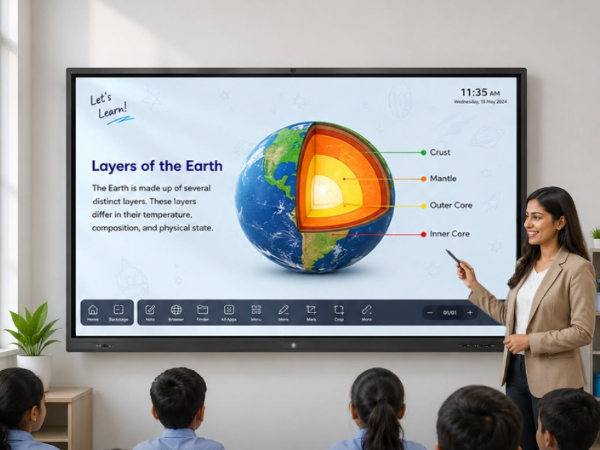
For example, a teacher explaining the human digestive system may need to display labels and anatomical details. A higher-resolution display can make those visual elements easier to see.
Onfinity’s current interactive flat panel specifications include True 4K UHD resolution across its 65-inch, 75-inch and 86-inch models.
4. Check the Touch Technology
Touch is what makes an interactive flat panel different from a standard television or display.
But not all touch systems provide the same experience.
When comparing panels, check:
- Touch technology
- Number of simultaneous touch points
- Touch accuracy
- Writing response
- Palm rejection, where available
- Whether fingers and styluses can be used
- Whether multiple students can interact at the same time
Why Multi-Touch Matters
Consider a mathematics lesson.
A teacher could write a problem on the screen while two students work on different parts of the solution.
Multi-touch can make collaborative activities more practical.
Onfinity’s current IFPD data sheet lists Advanced 40-point IR multi-touch for its 65-inch, 75-inch and 86-inch models. Its product range also includes models with 10-point multi-touch and infrared touch technology.
The important point is not simply choosing the highest number of touch points. Schools should consider whether the touch experience feels accurate and responsive during actual teaching.
5. Consider Brightness and Classroom Lighting
Classrooms rarely have perfect lighting conditions.
There may be:
- Windows
- Ceiling lights
- Sunlight
- Reflections
- Bright walls
- Different seating angles
A display with suitable brightness and an anti-glare surface can help teachers and students see content more comfortably.
When comparing interactive panels, check:
- Brightness level
- Anti-glare coating
- Viewing angle
- Contrast
- Screen surface protection
For example, Onfinity’s current 65-inch, 75-inch and 86-inch IFP models list brightness levels of 400, 500 and 500 cd/m² respectively, along with 178-degree viewing angles and toughened glass protection.
The correct specification should still be evaluated against the actual room environment.
6. Check Connectivity Options
A good classroom display should work easily with the devices teachers already use.
Before purchasing, check whether the interactive flat panel supports the connections your school needs.
Common options include:
- HDMI
- USB
- USB-C
- LAN
- Wi-Fi
- Audio input/output
- Touch input/output
- Bluetooth
- Screen-sharing or wireless casting
Why Connectivity Matters
A teacher might need to connect:
Laptop → Interactive Panel
Or:
Document Camera → Interactive Panel
Or:
Student Device → Interactive Panel
If connecting devices requires complicated adapters or repeated configuration, teachers may avoid using the technology.
Onfinity’s current IFPD specifications include multiple HDMI inputs, USB ports, USB-C, RJ45/LAN, touch input/output, audio connections and dual-band Wi-Fi.
7. Look at Wireless Screen Sharing
Wireless screen sharing can make classroom presentations easier.
Instead of connecting a laptop with a cable every time, teachers can potentially share content from compatible devices wirelessly.
This is useful when teachers want to:
- Share a presentation
- Display a student’s work
- Show a website
- Demonstrate an application
- Compare two pieces of work
- Move around the classroom while teaching
Example
A teacher asks students to complete a digital activity.
One student finishes first.
The teacher can display that student’s work on the interactive panel and discuss it with the class.
This turns the display into a collaboration tool rather than simply a large screen.
8. Check the Operating System and Software
Hardware is only one part of an interactive classroom.
The software experience matters just as much.
Depending on the model, an interactive flat panel may include an integrated operating system, classroom applications, whiteboarding tools, screen sharing, annotation tools, and other educational features.
When comparing products, ask:
- Which operating system does it use?
- Can teachers access required applications?
- Is built-in whiteboarding available?
- Can teachers annotate documents?
- Does it support screen sharing?
- Can the software be updated?
- Is additional software required?
- Can a Windows PC be connected if needed?
Onfinity’s IFPD range includes integrated Android functionality and optional PC configurations, while its product page highlights built-in tools, multi-touch, 4K display and easy screen sharing.
The best setup is one that teachers can understand and use without unnecessary technical complexity.
For a broader overview of smart classroom technology, schools can also explore Onfinity’s guide to smart classroom and digital display solutions.
9. Think About Teacher Usability
A technically advanced display is not useful if teachers find it difficult to operate.
This is an important part of choosing a smart board for classroom environments.
Look for:
- Simple controls
- Quick startup
- Easy annotation
- Easy content sharing
- Convenient front-facing ports
- Simple access to classroom tools
- Clear menus
- Reliable touch response
Teachers should be able to focus on teaching rather than troubleshooting the display.
A Good Test
Before buying, ask a teacher to perform a few everyday tasks:
- Turn on the display.
- Open the whiteboard.
- Write something.
- Connect a laptop.
- Share the laptop screen.
- Play a video.
- Annotate the video or document.
- Save or share the lesson.
If these steps are complicated, the school should investigate why before purchasing.
10. Check Audio and Built-In Speakers
Audio is easy to overlook when choosing an interactive display.
But classrooms frequently use:
- Educational videos
- Recorded lectures
- Language-learning content
- Music
- Presentations
- Online classes
Built-in speakers can reduce the need for additional equipment.
However, schools with larger classrooms should consider whether the built-in audio is sufficient for the room.
If the classroom is large, an external audio system may still be appropriate.
11. Consider Durability and Screen Protection
Classroom equipment needs to handle frequent daily use.
Teachers and students may interact with the screen multiple times every day.
Look for features such as:
- Toughened glass
- Anti-glare surface
- Reliable touch technology
- Dust-resistant design
- Durable construction
- Long operating life
Onfinity highlights a dust-proof design, infrared touch technology and rugged classroom performance on its interactive flat panel range. Its current product data sheet also lists 4 mm toughened glass with 7H protection on the referenced 65-inch, 75-inch and 86-inch models.
Schools should also ask about warranty coverage and replacement support before making a purchase.
12. Think About Installation
Installation is another factor that can affect the overall classroom experience.
An interactive flat panel may be:
- Wall mounted
- Installed on a mobile trolley
- Positioned using a height-adjustable solution
Wall mounting can save floor space and create a clean classroom setup.
A mobile stand can provide flexibility when the same display needs to be moved between rooms.
Before installation, check:
- Wall strength
- Mount compatibility
- Power supply
- Cable management
- Viewing height
- Teacher access
- Student accessibility
- Service access
A technically excellent panel can still become inconvenient if it is installed at the wrong height or in the wrong location.
13. Compare Total Cost, Not Just Purchase Price
The cheapest panel is not always the most economical choice.
Schools should consider the total cost of ownership.
This may include:
- Display price
- Mounting
- Installation
- Software
- Optional PC or OPS
- Accessories
- Training
- Warranty
- Maintenance
- Repairs
- Replacement parts
- Technical support
Example
Suppose Panel A costs less initially but requires several additional accessories and has limited local support.
Panel B costs slightly more but includes better connectivity, classroom software, installation support and stronger warranty coverage.
Panel B may provide better long-term value.
That is why schools should compare the complete package rather than comparing only the sticker price.
Schools can also review an interactive flat panel display buying guide when comparing important specifications and purchase considerations.
14. Check After-Sales Support
This is one of the most important factors for schools.
An interactive flat panel is likely to become part of everyday teaching. If something goes wrong, long downtime can affect multiple classes.
Before purchasing, ask the supplier:
- What warranty is included?
- Where is technical support available?
- How quickly are service requests handled?
- Are replacement parts available?
- Is installation included?
- Is teacher training available?
- Is annual maintenance available?
- Can multiple school locations receive centralized support?
For schools with several classrooms or campuses, support becomes even more important.
15. Choose a Display That Matches Your Teaching Style
Different schools may use interactive displays differently.
If Teachers Mainly Present
Prioritize:
- Screen quality
- Brightness
- Resolution
- Easy content sharing
- Reliable connectivity
If Students Frequently Interact
Prioritize:
- Touch accuracy
- Multi-touch
- Writing response
- Classroom software
- Durability
If the Classroom Uses Hybrid Learning
Prioritize:
- Camera compatibility
- Microphone support
- Speakers
- Wireless sharing
- Video conferencing compatibility
- Network connectivity
If the School Uses Digital Learning Platforms
Prioritize:
- Operating system
- Application compatibility
- Browser performance
- Storage
- Connectivity
- Security and updates
This is why there is no single “best interactive flat panel” for every classroom.
The best choice is the one that matches the school’s actual teaching requirements.
Interactive Flat Panel Classroom Buying Checklist
Before placing an order, use this quick checklist:
Display
- Appropriate screen size
- 4K UHD resolution
- Suitable brightness
- Good viewing angles
- Anti-glare protection
Touch
- Accurate touch response
- Suitable multi-touch support
- Stylus compatibility
- Comfortable writing experience
Connectivity
- HDMI
- USB
- USB-C
- Wi-Fi
- LAN
- Audio connections
- Wireless screen sharing
Software
- Suitable operating system
- Built-in whiteboard
- Annotation tools
- Classroom applications
- Easy updates
Classroom Use
- Built-in speakers
- Easy controls
- Durable construction
- Easy installation
- Teacher-friendly interface
Support
- Warranty
- Installation support
- Technical support
- Replacement parts
- Maintenance options
- Teacher training
A Simple 7-Step Process for Choosing an Interactive Flat Panel
If your school is still comparing multiple options, follow this process:
Step 1: Measure the classroom
Determine the room size, viewing distance and seating arrangement.
Step 2: Define the teaching requirements
Decide whether the display will mainly be used for presentations, annotation, collaborative activities, digital lessons or hybrid learning.
Step 3: Select the appropriate screen size
Choose a size that gives students clear visibility without unnecessarily increasing cost.
Step 4: Compare essential specifications
Look at resolution, brightness, touch technology, connectivity, operating system and audio.
Step 5: Test the user experience
Ask teachers to perform common classroom tasks on the actual display.
Step 6: Compare total ownership cost
Include installation, accessories, software, warranty and maintenance.
Step 7: Evaluate supplier support
Choose a supplier that can provide reliable installation, service and long-term assistance.
Why Onfinity Interactive Flat Panels Can Be Considered for Modern Classrooms
Onfinity Technologies offers interactive flat panels designed for classrooms as well as training and meeting environments.
Its current range includes the Ignite, Maxim and Bloom series, with models available in sizes including 65, 75, 86 and 98 inches. The product range highlights features such as 4K displays, multi-touch interaction, built-in tools and screen sharing.
Onfinity’s current IFPD specifications also include features such as 40-point IR multi-touch, Android functionality, Wi-Fi, multiple connectivity options, built-in speakers and optional PC configurations.
For schools, the key advantage is not simply having a large touchscreen. The objective is to create a classroom setup that teachers can use naturally for explaining concepts, displaying digital content, annotating lessons and involving students in activities.
Final Thoughts
Choosing the right interactive flat panel for a classroom requires more than comparing screen sizes and prices.
Start with the classroom itself.
Consider how far students sit from the display, what teachers need to do during lessons, how often students will interact with the screen, which devices need to connect, and what level of technical support the school requires.
Then compare the important specifications: screen size, 4K resolution, brightness, touch technology, connectivity, software, audio, durability, installation and after-sales support.
Most importantly, test the actual user experience before making the final decision.
A good interactive flat panel should make teaching easier—not add another complicated piece of technology for teachers to manage.
If your school is planning to upgrade classrooms, explore Onfinity’s interactive flat panel range and compare the available options based on your classroom size, teaching requirements and technology needs.
Ready to choose the right interactive display for your classroom? Talk to Onfinity Technologies to discuss your requirements and find a suitable interactive flat panel solution.
Frequently Asked Questions
The right size depends on classroom dimensions, viewing distance and student seating. Smaller classrooms may work well with 55- or 65-inch displays, while larger classrooms may require 75-inch, 86-inch or larger panels.
4K is recommended for modern classroom displays because it provides sharper text, images, diagrams and videos. It becomes particularly useful when teachers display detailed educational content.
There is no universal number that every classroom needs. Schools should consider how many users may interact with the display at the same time. More touch points can be useful for collaborative activities, but touch accuracy and responsiveness are equally important.
Check screen size, resolution, brightness, touch technology, connectivity, operating system, classroom software, audio, durability, installation requirements, warranty and after-sales support.
It depends on the classroom and teaching requirements. An interactive flat panel combines the display and touch interaction in one device, while projectors can be useful when very large projected images or existing infrastructure are priorities. Schools should compare both options based on room size, lighting, interaction needs and budget.
Yes. Many interactive flat panels support connections such as HDMI, USB and USB-C, while some also provide wireless screen sharing. The available options depend on the specific model.
The terms are often used interchangeably in education. A modern interactive flat panel is generally a large touchscreen display with built-in or connected computing, software, annotation and collaboration capabilities. “Smart board” is commonly used as a broader classroom term.
Interactive panels are often used every day, so technical problems can interrupt lessons. Reliable warranty, installation, service, replacement parts and technical support can reduce downtime and improve the long-term value of the investment.